
Made in India
KDK Software - Tax Compliance Solutions KDK Software - Tax Compliance Solutions
Made in India
  • Home
  • Products
    • Cloud Solutions
      • Spectrum Cloud
      • ExpressGST
      • ExpressITR
      • ExpressTDS
      • ExpressReco
    • Desktop Solutions
      • Zen PDF Signer
      • Spectrum
      • Income Tax
      • TaxSuite
      • e-TDS
  • Blog
  • Education
  • Company
    • About Us
    • Our Team
    • Customers
    • Careers
  • Resources
    • GST Number Search
    • Income Tax Mapper
    • TDS Calculator
  • Contact Us
Home › Blog › LAN Setting Procedure
Products Knowledge Base

LAN Setting Procedure

27 Aug 2019 By KDK Software

Table of contents

  • WHAT IS LAN SETTING AND ITS OBJECTIVE
  • LAN SETTING PROCESS

WHAT IS LAN SETTING AND ITS OBJECTIVE

 LAN (Local Area Network) setup is developed by connecting two or more than two computers with each other using a physical connection or Wi-Fi in order to share files and data overtime.

As specified above, Spectrum is a multi user software which means the software can be used on multiple systems keeping the data centralized. 

LAN SETTING PROCESS

1. To proceed with LAN setting you need to install the software on LAN system. The Set up for LAN / Client is available on the www.kdksoftware.com 
Website → Home Page → Software downloadNEW or Click here!

2. Install the desired software from this window (Recommended is Web Installer)

3. Once the software is installed on LAN, please follow the process below:
4. Please ensure that the software is completely closed on the Server and client system before following the instructions below, otherwise you may lose your data.

SERVER PROCESS

1. Firstly, share the “K.D.K Software” folder on SERVER system. It will be available at the Root location where you have installed the SOFTWARE.

Default location is: “C:\Program Files\K.D.K. Software” OR “C:\Program Files (x86) \K.D.K. Software”

SHARING PROCESS:

1. Right Click on K.D.K Software folder→ Properties

2. Under Sharing → Advance sharing → Tick on the Check Box saying “Share this folder” → Permissions → Full control → Apply and OK.

3. Then go to Security tab→Edit → Add → Type Everyone → OK → Check mark on Full control → Apply and OK.

  – For special permissions or advance settings, click Advanced.

  4.  Go to Auditing Tab → Edit → Add → Type Everyone  → OK → Tick the check box for  Full control → Apply and OK.

5. This would enable sharing of the K.D.K Software folder to all the systems available in the network.

Steps to Process with LAN setting:

Please ensure that the SERVER system should be accessible from the node system and both server\client systems should be on network.
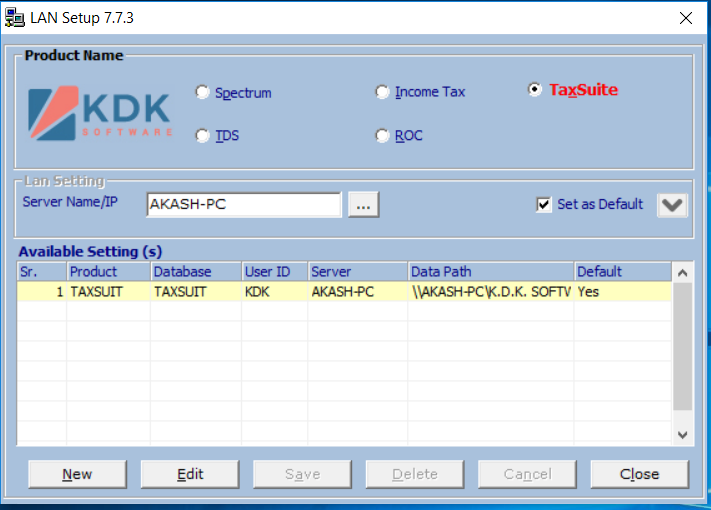
1. On client system go to the location where the software is installed   Default  Location : “C:\Program Files\K.D.K. Software\KDK Support” or “C:\Program Files (x86)\K.D.K. Software\KDK Support”. Double click on LAN setup. 

2. Now, click on “Edit” button. Browse the Server at “Server Name/IP” field.

3. Once the Server is selected for example – AKASH-PC, the Server IP automatically gets fetched.

4. Now as you click on Save Button, the LAN Setting will get done successfully and a window appears as given below.

5. This will put the software on LAN. You can follow the same process for other LAN’s if any.
6. Once you have completed these steps close the LAN setup window. Start the software on server and then run it on LAN system.

7. On opening the software on LAN system it will appear as “LAN VERSION”.

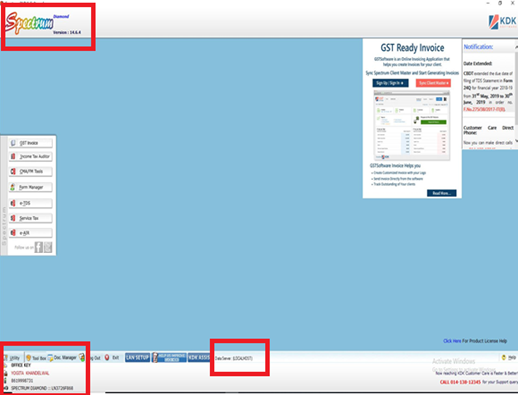
How to identify whether your system is server system or LAN system-

  1. System where software is REGISTERED Would be server system
  2. On sever system, you will be able to see the following information-
    1. At the bottom part of spectrum screen, you will be able to see the Data Server (Localhost)
    2. Product details will get appeared
    3. Registration details will get appeared in the following manner

Server System: 
LAN System: 

  1. At the bottom part of spectrum screen, you will be able to see the Data Server (Server System name / IP Address)
  2. Product details would appear.
  3. Registration details would not appear.

Note:- The day to day work done on the LAN system would be automatically saved onto your server, which means the data is saved on the server system. 
The XML Files or FVU files generated by the LAN system would by default get saved on the Local LAN system. Default Location is  “C:\KDK Data“

The above process explained is for Spectrum Software. In case where other product are concerned, the only difference would be with Database Name and Product Name as Below:

TAXSUIT :
Zen IT:

Zen TDS:

ROC:

Similar Posts

GST Registration Online: How to Register for GST & Get Your GSTIN Number (2026) ExpressGST GST Registration Online: How to Register for GST & Get Your GSTIN Number (2026) GSTR-1 Filing: What is GSTR-1 Form, Due Date & How to File Online (2026) ExpressGST GSTR-1 Filing: What is GSTR-1 Form, Due Date & How to File Online (2026) KDK Software Featured Among ET Edge Bharat’s Best to a Billion KDK News KDK Software Featured Among ET Edge Bharat’s Best to a Billion
Back to Blog

Keep in touch

Categories

Daily Bites (102) Products Knowledge Base (54) Insights (24) GST Update (18) General (15) Spectrum Cloud (14) ExpressGST (13) Productivity (9) KDK News (7) KDK Update (7) ExpressITR (5) Strive for Excellence (5) ExpressTDS (3)

Popular Posts

  • GST Registration Online: How to Register for GST & Get Your GSTIN Number (2026) GST Registration Online: How to Register for GST & Get Your GSTIN Number (2026)    7 Apr 2026
  • GSTR-1 Filing: What is GSTR-1 Form, Due Date & How to File Online (2026) GSTR-1 Filing: What is GSTR-1 Form, Due Date & How to File Online (2026) 6 Apr 2026
  • KDK Software Featured Among ET Edge Bharat’s Best to a Billion KDK Software Featured Among ET Edge Bharat’s Best to a Billion  4 Apr 2026
  • Desktop vs Cloud Tax Software in India: The Real Cost for CA Firms (2026) Desktop vs Cloud Tax Software in India: The Real Cost for CA Firms (2026) 30 Mar 2026
  • How Much Does It Actually Cost to Run a CA Firm in India? (2026 Breakdown) How Much Does It Actually Cost to Run a CA Firm in India? (2026 Breakdown) 27 Mar 2026

Tags

GST (49) KDK Support (40) Income tax (33) spectrum (29) GST News (24) government (19) TDS (15) tds filing (13) ExpressGST (11) tax software (9) Spectrum Cloud (7) compliance (7) announcement (6) council meetings (6) Migrate to Spectrum Cloud (5) ExpressTDS (1) GSTR1 (1) Indian Enterprise Recognition (1) ET Edge (1) Economic Times (1)
About Us

KDK Software - The Trusted Choice for Countless Tax Filers. Renowned as a Pioneer in Tax Compliance, KDK Stands Tall in Providing Solutions for ITR, TDS, and GST Software Needs.

Read more!

Social Links
  • Facebook
  • Instagram
  • Twitter
  • Pinterest
  • YouTube
  • Linkedin
  • KDK Software - GSP ISO Certified
Tags
  • Spectrum Cloud
  • Income Tax
  • Spectrum
  • Tax suite
  • KDK Care
  • Zen TDS
  • Cloud ITR
  • 26AS
  • GST
  • PDF Signer
  • eXBace
  • Cloud TDS
  • Blog
  • Software Demo
About KDK
  • About Us
  • Career
  • News & Media
  • Download
  • Join Partner Network
KDK Products
  • Spectrum Cloud
  • Spectrum
  • Income Tax
  • e-TDS
  • Express Reco ( 26AS Reco)
  • Express ITR ( Cloud ITR )
  • Express TDS ( Cloud TDS )
  • Express GST (Best 2A/2B Reco Tool)
  • PDF Signer
  • eXBace
  • TaxSuite
  • Enquiry Now!
Important Links
  • GST Number Search
  • TDS Calculator
  • Income Tax Mapper
  • Webinars
  • Migrate from Any Software
  • Software Download
  • Connector Download
  • Knowledge Base
  • Privacy Policy
  • Terms & Conditions
  • Product Enquiry

Support Helpline
Call: 08881012345
Email: support@kdksoftware.com
Sales Helpline
Call: 093145-17671
Email: sales@kdksoftware.com

KDK Software


Copyright 2026 All Rights Reserved.

Get Free Trial

Try Every Feature, Add Unlimited Users. No Credit Card Required!.

Spectrum Cloud Express GST Express TDS Express ITR
ET Edge Bharat's Best to a Billion
KDK Software Recognised Among Bharat's Best to a Billion
KDK Software featured among India's high-growth companies shaping the country's economic future.
Read Full Story →
Request a Demo!
Get Demo!
Contact Sales
Sales
Call @ 08881012345
Call
Connect on WhatsApp
WhatsApp
YouTube
YouTube